Guide · updated 2026-11-03
How to set up Anki Vector with wire-pod (2026)
Yes. Anki Vector still works in 2026 if you run wire-pod, a free voice server, on a computer at home. Put a normal Vector on escape pod firmware, install WirePod (current installer v1.2.18, released May 10, 2026), then sign him in from its web page on port 8080.
A Vector you buy secondhand today needs wire-pod (installer releases live under kercre123/WirePod). It is a free, MIT-licensed voice server that runs on a computer in your house and takes the place of the Digital Dream Labs servers, which its FAQ says have been down for a long time. wire-pod works with Vector 1.0 and 2.0, including robots that were never unlocked. Every voice command works again, and you can send questions to OpenAI, Together or a local Ollama model. Next step: flash escape pod firmware (production robots), install WirePod v1.2.18, then authenticate from the web UI.
| What you need | What works | Notes |
|---|---|---|
| A Vector | Vector 1.0 or 2.0, a normal production robot or an OSKR/dev-unlocked one | Production robots need special escape pod firmware first (step 1) |
| A computer that stays on | Linux (apt, pacman or dnf), Windows 10/11, macOS 11+, on x86_64 or aarch64. Android also works but is early. | Vector only hears you while wire-pod is running |
| Bluetooth and Chrome | Any device with both, for the setup page | Windows or macOS is preferred; an Android phone works too |
| wire-pod | Free, MIT license | No payment to Digital Dream Labs and no account |
| Speech to text | VOSK (recommended), Whisper, Coqui or Picovoice Leopard | All run locally. The setup script says not to run Whisper on a Pi. |
| Something to answer questions (optional) | Houndify, OpenAI, Together, or any OpenAI-compatible host such as Ollama | Ollama runs on your own machine. The others need an account and key. |
Step 1: put a production Vector on escape pod firmware
Skip this if your robot is OSKR or dev-unlocked. For a normal Vector, the version number you start on doesn't matter. What matters is the special firmware Digital Dream Labs built for its paid Escape Pod product, which you can install for free. Being on 2.0 alone isn't enough. On the robot's CCIS screen the firmware string should end in `ep`.
Put Vector on the charger and hold his button for about 15 seconds. He turns off. Keep holding until the lights come back on. That's recovery mode, and it doesn't erase anything.
When his face shows anki.com/v or ddl.io/v, open Chrome on a device with Bluetooth and go to wpsetup.keriganc.com. Follow the steps and the update starts downloading. If Chrome complains even though you're on Chrome, enable "Experimental web platform features" in chrome://flags and relaunch.
After the update, clear user data. The wiki says the robot can technically work without it, but you'll get weird behavior. On the charger, double press the button, lift the lift up and down, take him off the charger, turn a wheel to CLEAR USER DATA, lift up and down, turn to CONFIRM, then lift up and down once more.
Step 2: install wire-pod
First check that nothing else on your network is running wire-pod or is named `escapepod`. Then grab the installer for your system from the WirePod releases page. Note that it's WirePod, a different repo from wire-pod.
Windows: run WirePodInstaller-v1.2.18.exe. If SmartScreen pops up, click More info, then Run anyway. macOS: open the .dmg, drag WirePod to Applications, and allow it in Security settings the first time. Debian, Ubuntu or Raspberry Pi OS: install the .deb with `sudo apt install -y ./wirepod_<arch>-v1.2.18.deb`. Use arm64 on a Raspberry Pi 5, because the wiki says the armhf build segfaults there.
On other Linux distros, build from source. Clone it over HTTPS (the wiki warns that SSH breaks updates later), run `sudo STT=vosk ./setup.sh`, then `sudo ./chipper/start.sh`. The log prints a configuration page on port 8080. Run `sudo ./setup.sh daemon-enable` to keep it running in the background.
Open the configuration page from any device on the same network and pick your speech-to-text language and how Vector should answer questions. You can change these later.
Step 3: sign Vector in
In the wire-pod web page, open Bot Setup and follow the Authenticate section. Depending on the build, it either sends you to the same setup site from step 1 or scans over Bluetooth on its own. Click ACTIVATE or AUTHENTICATE. If it errors, wait about 20 seconds and try again, since it can take a few tries. You're done when it says Vector setup is complete.
After that the Vector phone app won't work with this robot. The web page on port 8080 replaces it, and Bot Settings there is where you set his location and weather units. Weather needs a key from weatherapi.com or openweathermap.org.
Step 4: give Vector an LLM
In the configuration page, choose how Vector answers questions. With OpenAI or Together you paste in a key. For a local model, use the OpenAI-compatible option. The page's own example for Ollama is an API key of `ollama`, an endpoint of `http://localhost:11434/v1` and a model name like `llama3`. The default prompt is "You are a helpful, animated robot called Vector. Keep the response concise yet informative." and you can replace it.
By default you start with "Hey Vector, I have a question." Turn on intent-graph (the wiki lists it for OpenAI and Together) and anything that doesn't match a built-in command goes straight to the model. There's also a box that lets the model play animations while it answers. Turn that on and you can enable conversations, where Vector remembers earlier chats.
Custom commands live in the same web page. You give each one a name, a description, a few trigger phrases and the intent it should run. wire-pod matches a command when what you said contains one of the phrases. For more control, custom commands can run Lua with functions like sayText and playAnimation. Robots signed in to wire-pod also keep working with the Vector Python SDK.
Where people get stuck
"Error logging in. The bot is likely unable to communicate with your wire-pod instance." The troubleshooting page says this is usually the router. Check that http://escapepod.local:8080 opens from another device on the network. Restart Vector and the wire-pod machine a few times, because mDNS is finicky and only broadcasts every 60 seconds. In the router settings, turn on UPnP, multicast and mDNS, and turn off AP isolation. Make sure no firewall sits between them. On Linux, `sudo hostnamectl set-hostname escapepod` and restarting avahi-daemon can fix it.
Vector signed in, but wire-pod doesn't know he exists. He isn't on the escape pod firmware and signed in to the official servers instead. Redo step 1 and make sure he actually reaches the recovery screen.
Voice commands work, but he isn't listed in Bot Settings. Go back to the setup site and finish step 3. You use that site twice.
Unlocking. The FAQ says you can't unlock a production Vector right now. The paid OSKR unlock hasn't been handed out in a long time. You don't need it for anything on this page.
More talking robots to build
Vector comes already built, which makes him a quick way to get a robot that moves and talks. If you'd rather build one yourself, these desk robots are a good start, and some of them can talk to an AI agent. See also cheap ESP32 robot projects and how to give your AI agent a robot body.
Sources
Everything on this page comes from the wire-pod project, read Oct 21, 2026: the README, the wiki's Home, Installation, Troubleshooting, FAQ, Things to Know and Custom Intents pages, the setup script and configuration page in the repo, and the WirePod releases page for the v1.2.18 version and date. wire-pod is free. We didn't list prices for Vector robots or the paid LLM APIs because they vary by seller and plan.
Common questions
Does Anki Vector still work in 2026?
Yes, with wire-pod. The Digital Dream Labs servers have been down for a long time, per the wire-pod FAQ, so the official app can't set him up. wire-pod runs the voice server on your own computer instead.
Is wire-pod free?
Yes. It's open source under the MIT license and needs no payment to Digital Dream Labs. If you connect OpenAI or Together, those services bill you on their own. Ollama runs locally.
Can Vector use ChatGPT or a local LLM?
Yes. wire-pod can send questions to OpenAI, Together or any OpenAI-compatible host. For Ollama, the configuration page uses the endpoint http://localhost:11434/v1 and the key ollama.
Does my computer have to stay on?
Yes. Vector only understands voice commands while wire-pod is running, so a small always-on machine like a Raspberry Pi is a common choice. Use the arm64 build on a Pi 5.
Does wire-pod work with Vector 2.0?
Yes, it works with Vector 1.0 and 2.0. A production robot needs firmware 1.8 or 2.0.1 with the escape pod build, which step 1 installs.
Can I still use the Vector phone app?
No. The app doesn't work with a robot signed in to wire-pod. Use the web app wire-pod serves on port 8080.
What to build next
Builds that share a board, robot or agent with this one.
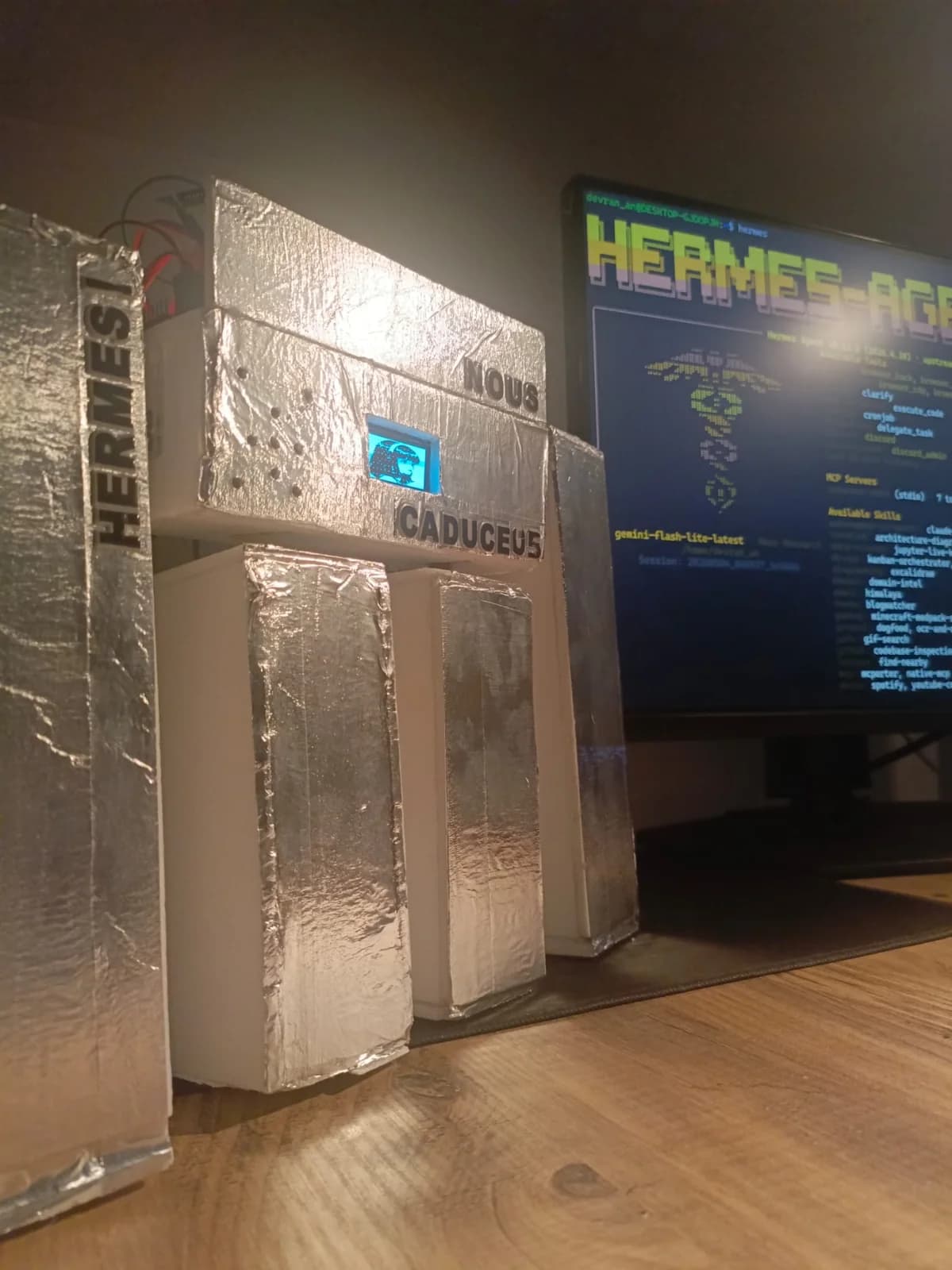 Caduceus: a voice robot body for Hermes Agent, wired up over MCPAlso tagged #voice
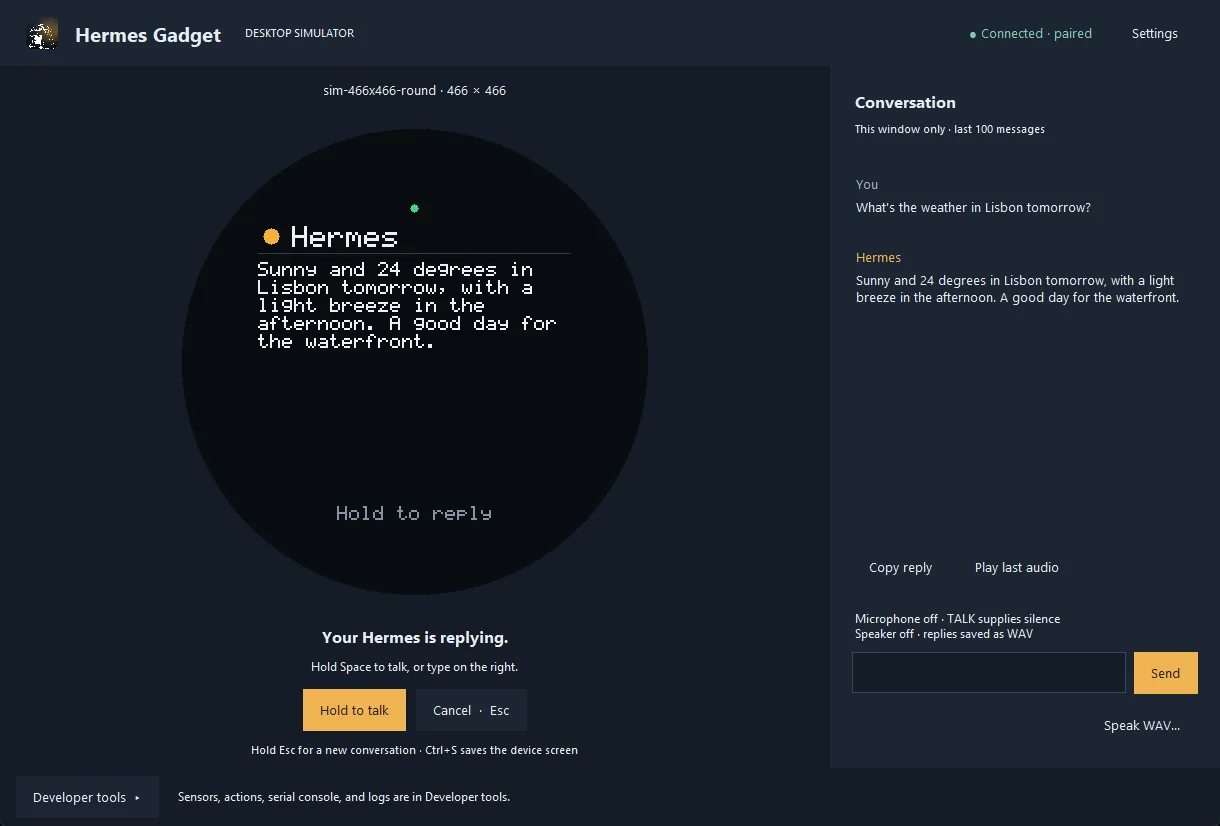 Hermes Gadget: an ESP32 or Raspberry Pi voice body for your Hermes AgentAnother desk robot
 JARVIS Desk Bot: a talking ESP32 desk robot for your AI agentAnother desk robot
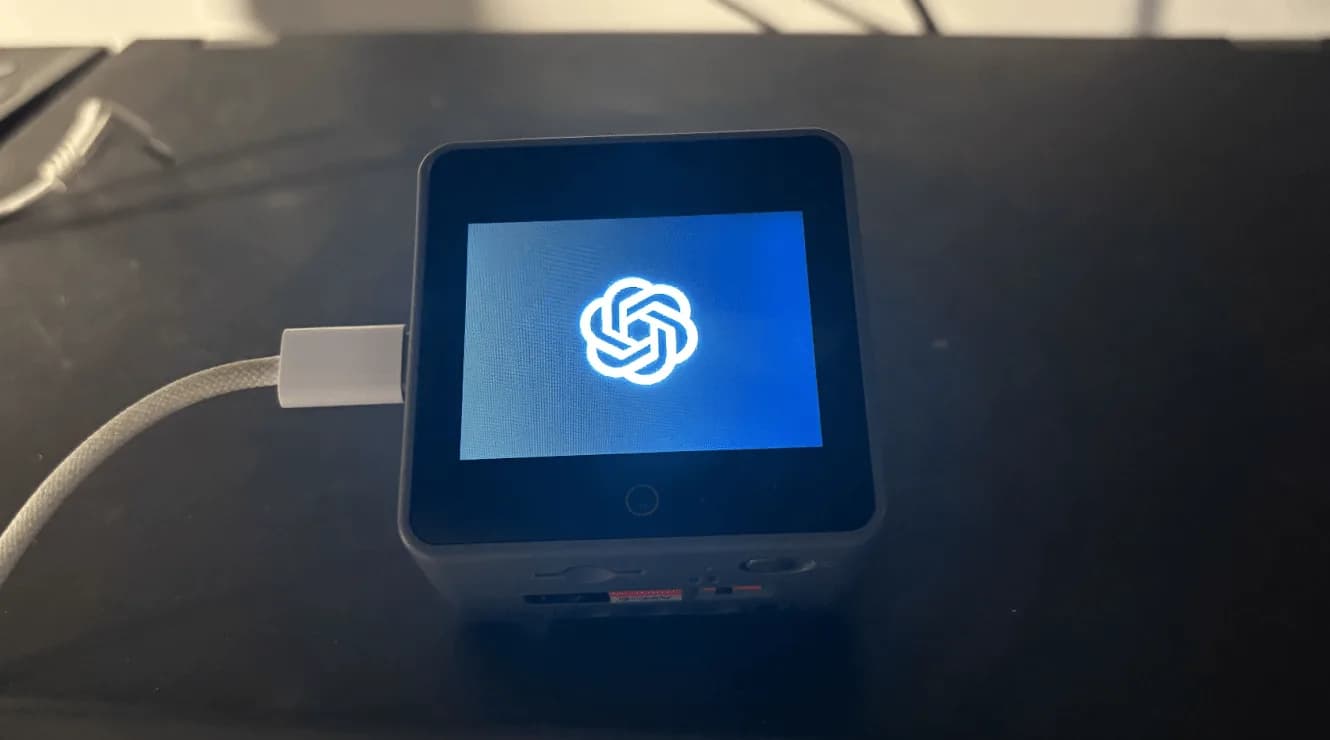 Reflect: a voice-and-light assistant on an M5Stack CoreS3Also tagged #voice
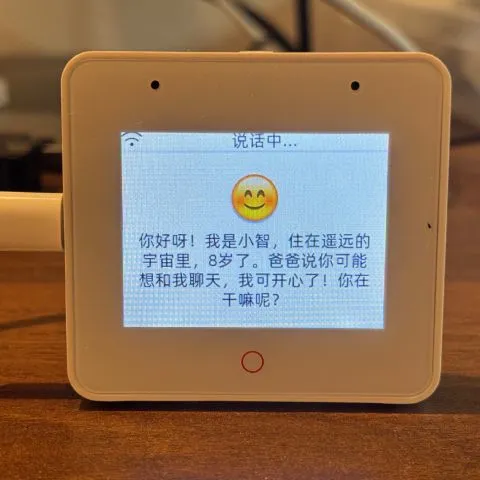 Build an ESP32 AI voice robot with XiaoZhi and MCPAnother desk robot
- Talk to the OpenAI Realtime API from an ESP32 over WebRTCAlso tagged #voice
More guides: Give your AI agent a robot body · Codex and ChatGPT hardware projects people actually built · What can Reachy Mini do? Real projects and apps · Cheap ESP32 robot projects you can build · Best robot arm under $200 · SO-101 vs SO-100 · SO-101 parts list and cost · Robots you can build with AI · AI hardware for robot and agent builds